> ## Documentation Index
> Fetch the complete documentation index at: https://developer.dromo.io/llms.txt
> Use this file to discover all available pages before exploring further.
# Using Field Types
Dromo's field types define how a field accepts, transforms, validates, and outputs data. They ensure consistent data types across a field (e.g., `number` for numeric values, `string` for text). Field types cover categories like numbers, text, dates, and times.
### Selecting the Best Type
By default, if you don't specify a type for a field, it uses the [`string` type](/reference/fields/field-types#string%E2%80%8B). For example, below, we create a field for collecting email addresses:
```javascript JavaScript theme={null}
const fields = [
{
label: 'Email Address',
key: 'emailAddress'
}
];
const settings = {
importIdentifier: 'Field types example'
};
const user = {
id: '12345'
};
const dromo = new DromoUploader('FRONTEND_API_KEY', fields, settings, user);
```
```jsx React theme={null}
Import data
```
Because we didn't specify a *type* in the above "Email Address" field, it uses the default `string` type.
However, if we update the "Email address" field to use the [`email` type](/reference/fields/field-types#email%E2%80%8B), that field gains the advantage of Dromo's built-in email address validation:
```javascript JavaScript theme={null}
const fields = [
{
label: 'Email',
key: 'email',
type: 'email'
}
];
```
```jsx React theme={null}
```
Selecting the ideal type for each field is essential to honing your Dromo workflow. [See all field types.](/reference/fields/field-types)
### Configuring Field Types
Certain field types offer different configuration options, enabling you to customize how data is validated, displayed to the user, and output.
For example, we want a field that tracks prices in USD. We can add a "Price" field using the ["usd" preset](/reference/fields/field-types#number%E2%80%8B):
```javascript theme={null}
const fields = [
{
label: 'Price',
key: 'price',
type: ['number', { preset: 'usd' }]
}
];
```
Dromo provides many preset options for formatting standard `number`, `date`, `time`, and `datetime` formats. Presets work by automatically filling preset values into the configuration options for a field type.
You can manually configure the options for a number type:
```javascript theme={null}
type: [
"number",
{
round: ,
displayFormat: ,
outputFormat:
}
]
```
Or you can use a preset, which configures options for you. Under the hood, the "usd" preset inputs the following options:
```javascript theme={null}
{
round: 2,
displayFormat: {
mantissa: 2,
thousandSeparated: true,
output: "currency",
average: false,
spaceSeparatedCurrency: true,
currencyPosition: "prefix",
currencySymbol: "$"
}
}
```
To learn more about configuring your types without presets, see [customizing numbers](/reference/fields/field-types#number%E2%80%8B) or [customizing dates, times, and datetimes](/reference/fields/field-types#datetime%E2%80%8B).
The "usd" preset ensures that this `number` field parses, validates, displays, and outputs values in dollars. Therefore, if a user attempts to insert a value that *can't* be parsed into USD (i.e., another currency), Dromo throws a validation error:
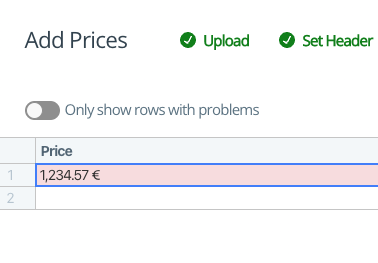 For numbers (and a few other field types) the display format is not what the field outputs. If you want to change how a field is output, the `outputFormat` configuration option enables you to do so. For example, if you want to convert a number into USD, you can use the ["usd" preset](/reference/fields/field-types#number%E2%80%8B) alongside an `outputFormat` option.
```javascript theme={null}
{
label: 'Price',
key: 'price',
type: [
'number',
{
preset: 'usd',
outputFormat: {
mantissa: 2,
thousandSeparated: true,
output: 'currency',
average: false,
spaceSeparatedCurrency: true,
currencyPosition: 'prefix',
currencySymbol: '$'
}
}
]
}
```
For numbers (and a few other field types) the display format is not what the field outputs. If you want to change how a field is output, the `outputFormat` configuration option enables you to do so. For example, if you want to convert a number into USD, you can use the ["usd" preset](/reference/fields/field-types#number%E2%80%8B) alongside an `outputFormat` option.
```javascript theme={null}
{
label: 'Price',
key: 'price',
type: [
'number',
{
preset: 'usd',
outputFormat: {
mantissa: 2,
thousandSeparated: true,
output: 'currency',
average: false,
spaceSeparatedCurrency: true,
currencyPosition: 'prefix',
currencySymbol: '$'
}
}
]
}
```