> ## Documentation Index
> Fetch the complete documentation index at: https://developer.dromo.io/llms.txt
> Use this file to discover all available pages before exploring further.
# AI Editing with User Transformations
## Overview
Dromo's Transform Data feature allows your users to create bulk transformations from natural language and execute them on the dataset. The feature is available on the Pro plan.
Enable Transform Data with the [`reviewStep.enableUserTransformations` setting](/reference/settings/settings#enableusertransformations).
With `enableUserTransformations` enabled, you will see a "Transform Data" button on the Data Review step.
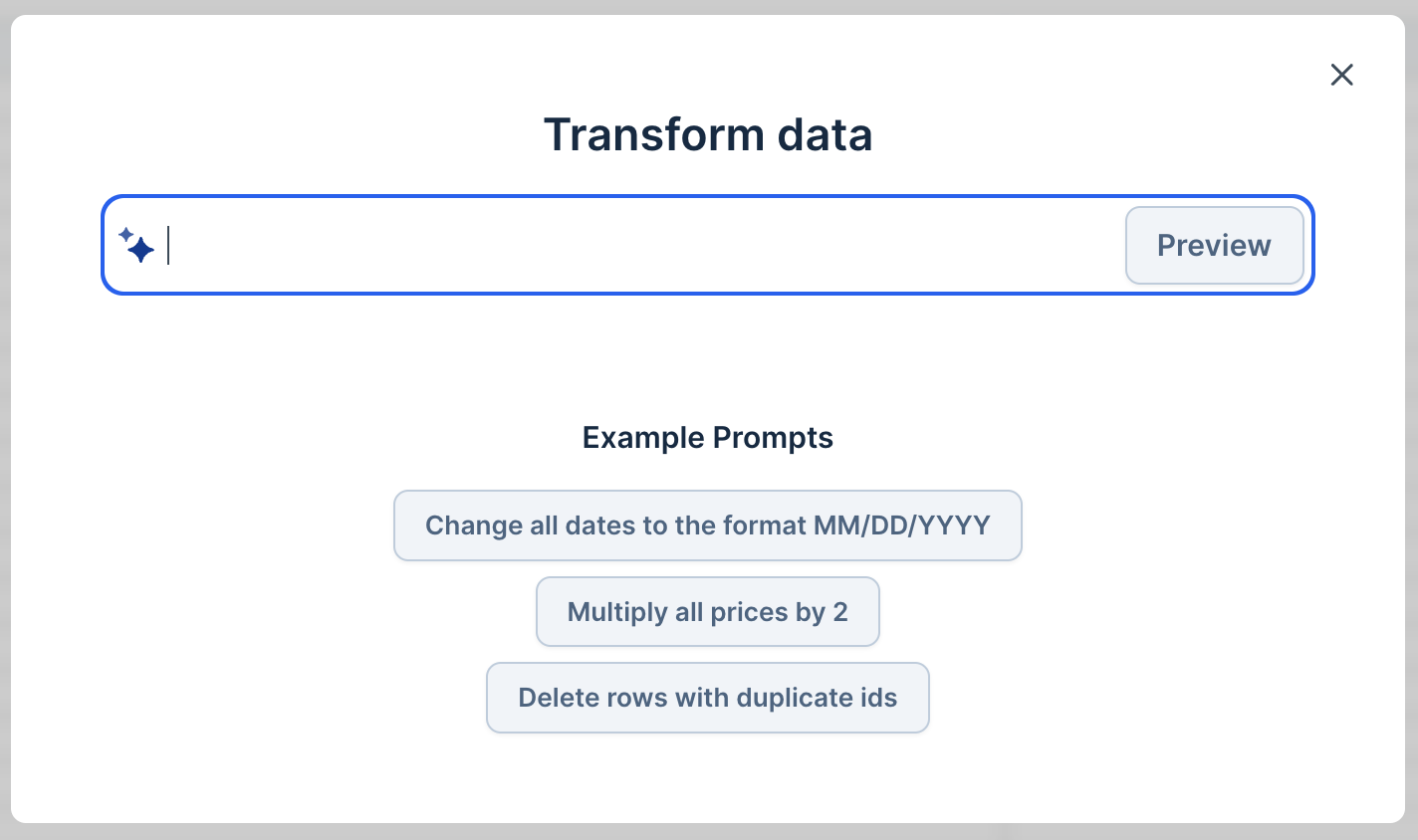
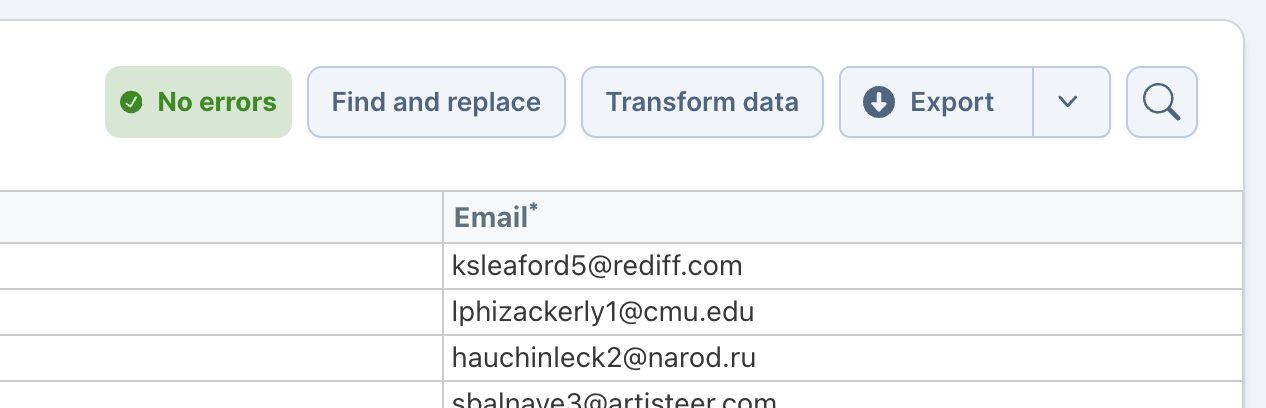 Click this button to open the Transform Data modal. You will be prompted for what you would like to do to your data.
 Transform Data takes a user's request and turns it in to a transformation that can be applied to the data. If the request was successfully able to produce a transformation, the result is previewed to the user so they can optionally accept or reject it.
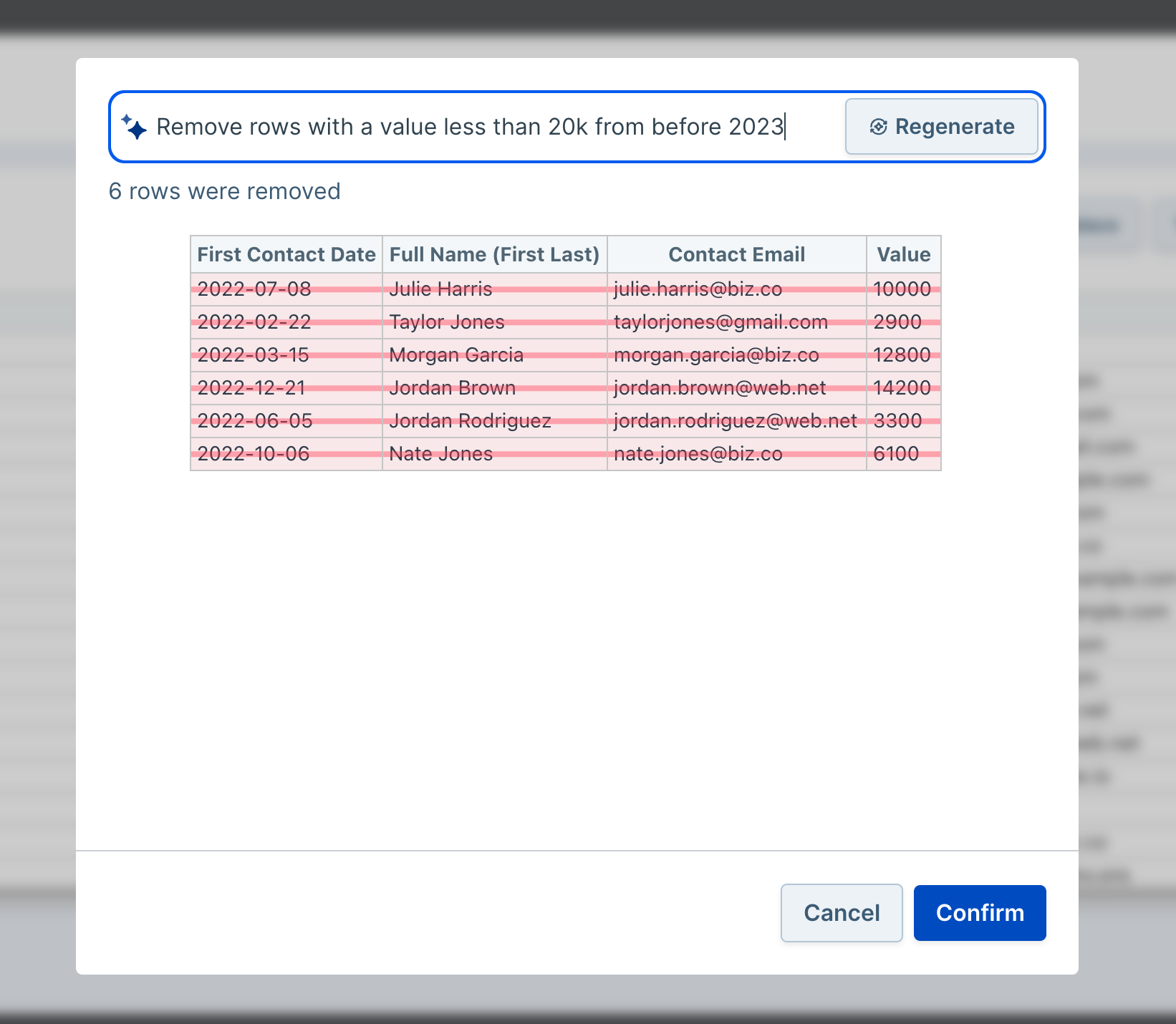
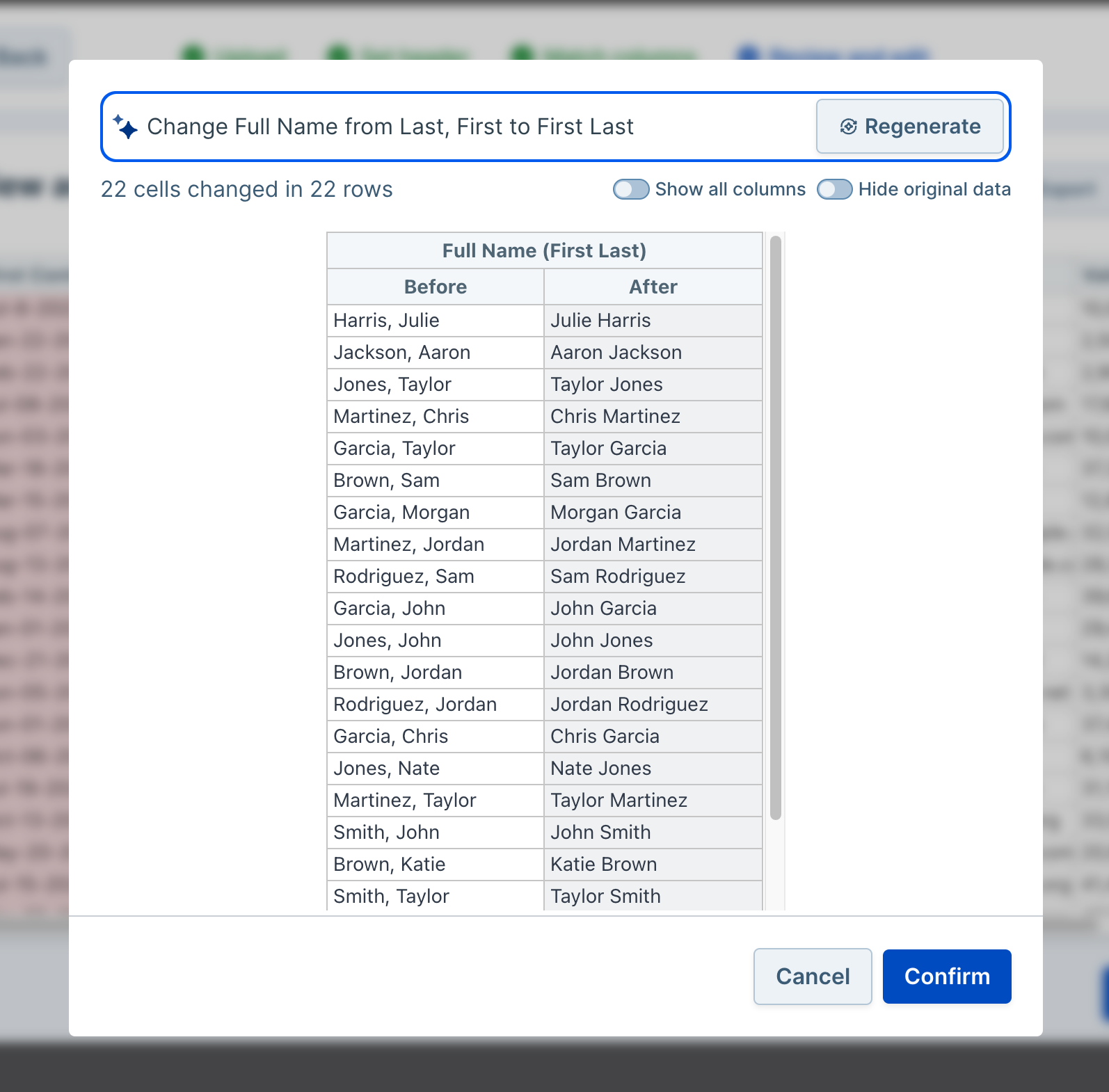 The feature can edit values and remove rows. It cannot add rows.
 ## Best Practices
### Include context about inputs
The AI building the transformation function never has access to the import data, so including context about both the input and output is often helpful.
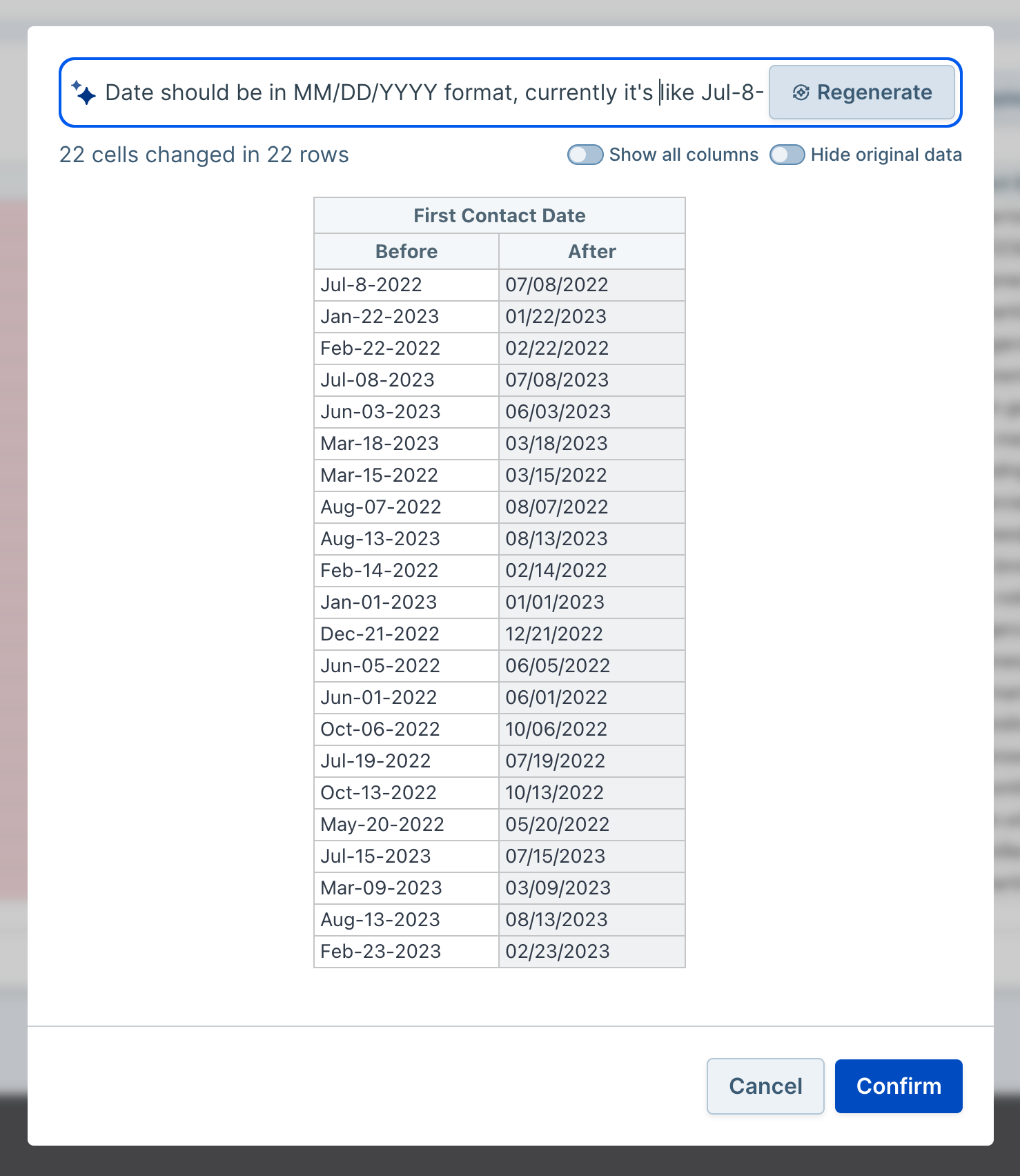
For example, given a column containing dates formatted like "Jul-8-1999" where you wish to convert them to "07/08/1999," you should request "Change the date format from 'Jul-8-1999' to MM-DD-YYYY." A request unlikely to succeed would be "Change the dates to US format" because the AI does not have access to the current format.
## Best Practices
### Include context about inputs
The AI building the transformation function never has access to the import data, so including context about both the input and output is often helpful.
For example, given a column containing dates formatted like "Jul-8-1999" where you wish to convert them to "07/08/1999," you should request "Change the date format from 'Jul-8-1999' to MM-DD-YYYY." A request unlikely to succeed would be "Change the dates to US format" because the AI does not have access to the current format.
 ### Only apply transformations to one row at a time
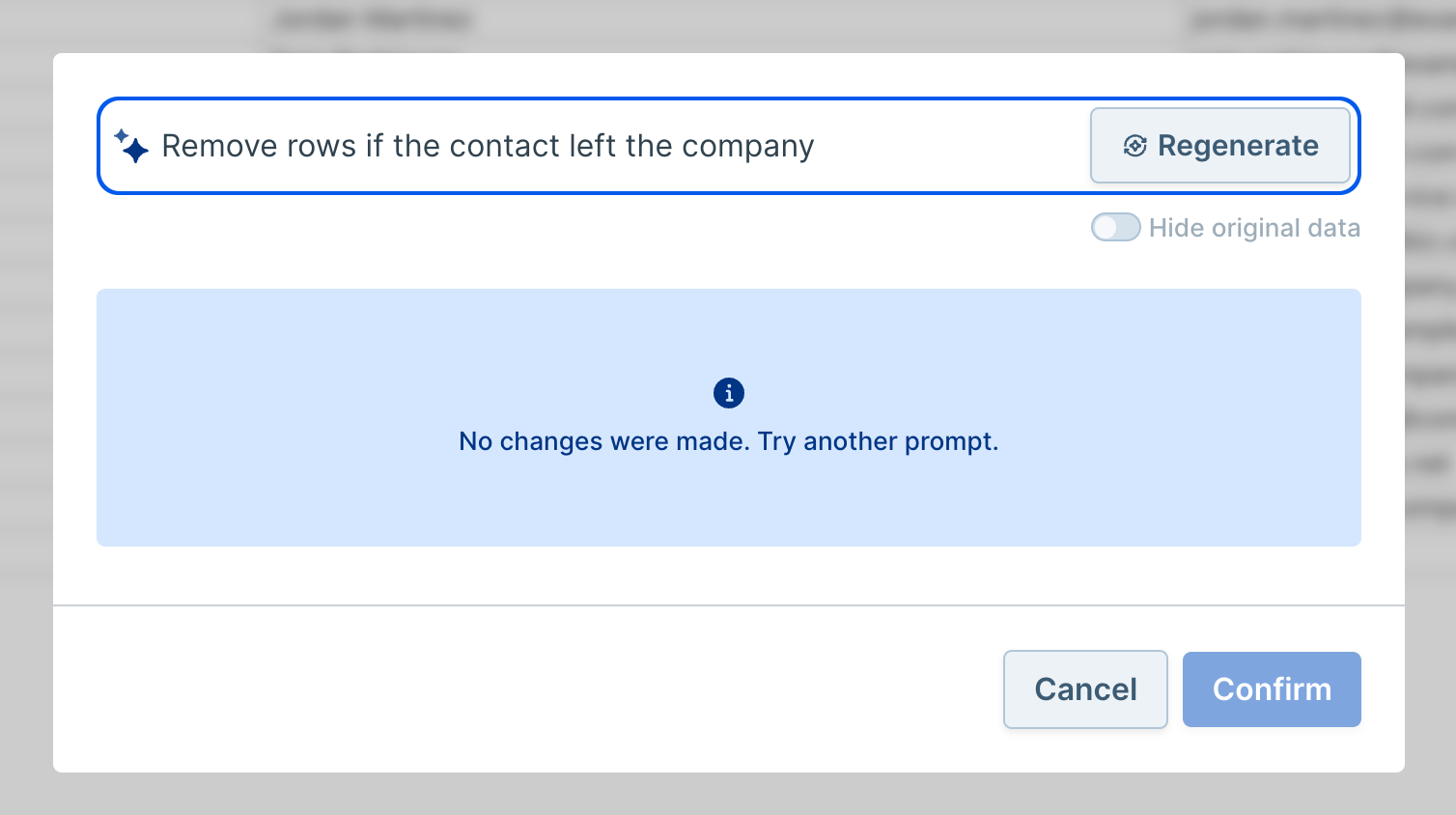
A transformation only has access to an individual row. If you need to perform an operation that requires knowledge of other rows or information outside of the table, the transformation will not succeed.
### Only apply transformations to one row at a time
A transformation only has access to an individual row. If you need to perform an operation that requires knowledge of other rows or information outside of the table, the transformation will not succeed.
 ### Keep expectations realistic
Transform data performs best when it is given a simple, well-scoped task. Changing values based on simple criteria, adjusting date and time formats, and removing rows based on simple conditions are all great uses for the transform data feature.
## Privacy
Dromo sends the request to OpenAI along with some information about the schema, but absolutely no user data is transmitted as part of this process.
### Keep expectations realistic
Transform data performs best when it is given a simple, well-scoped task. Changing values based on simple criteria, adjusting date and time formats, and removing rows based on simple conditions are all great uses for the transform data feature.
## Privacy
Dromo sends the request to OpenAI along with some information about the schema, but absolutely no user data is transmitted as part of this process.