> ## Documentation Index
> Fetch the complete documentation index at: https://developer.dromo.io/llms.txt
> Use this file to discover all available pages before exploring further.
# Bring Your Own Storage
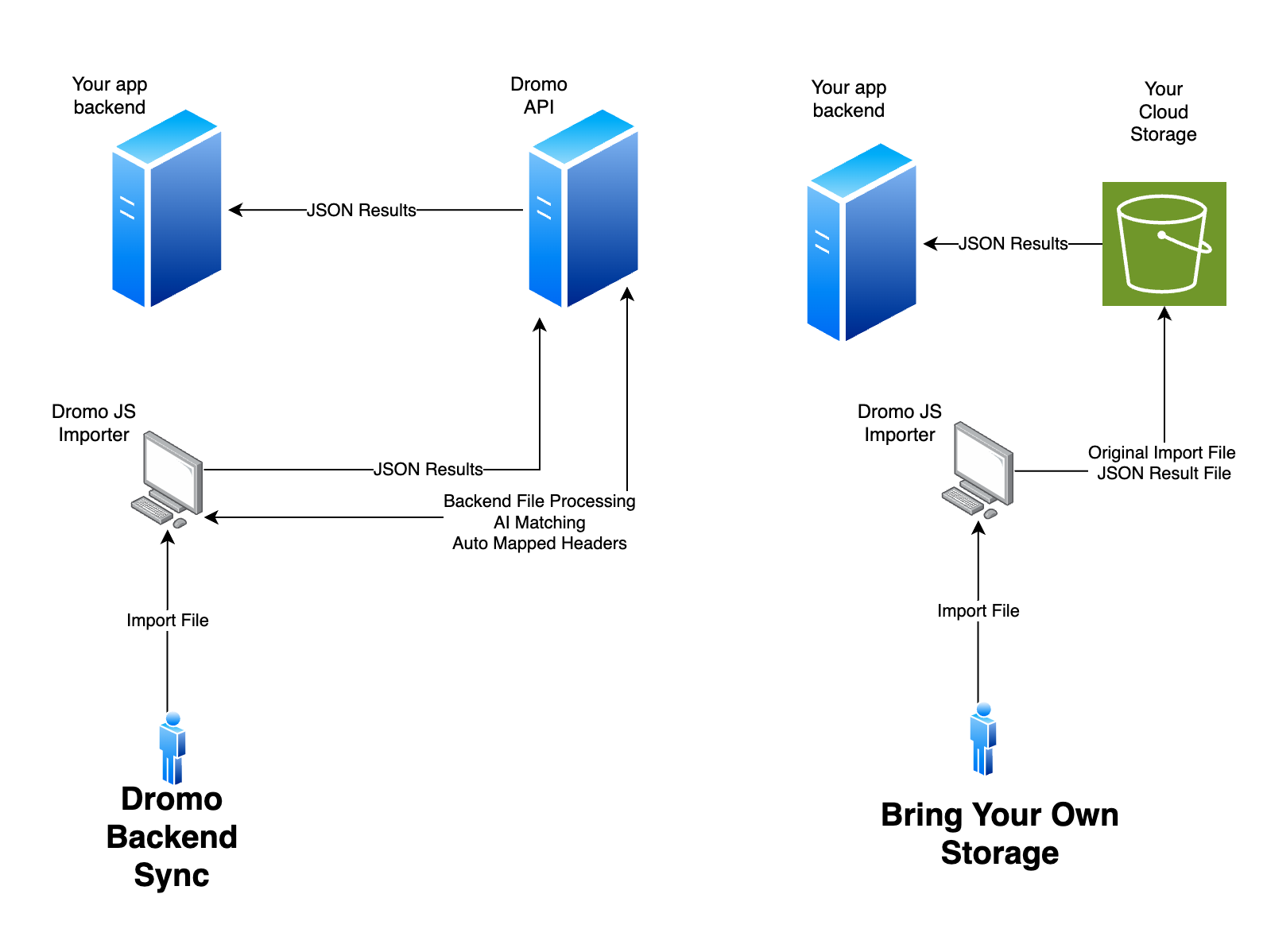
Bring Your Own Storage (BYOS) allows import data to be sent from the Dromo JS widget in your user's browser directly to your cloud storage bucket, without Dromo ever having access to the data.
BYOS is only available on the Enterprise Plan.
 ## BYOS Requirements and Setup[](#byos-requirements-and-setup "Direct link to BYOS Requirements and Setup")
BYOS supports AWS S3, GCP Cloud Storage, and Azure Blob Storage. You will need to have configuration access to prepare your storage layer for receiving data from Dromo. Dromo will need **write-only** access, which will be used to generate pre-signed upload URLS used by the Dromo importer widget.
The Dromo Solution Engineering team will guide you through the setup process.
## Using BYOS[](#using-byos "Direct link to Using BYOS")
Once configured, ensure [`settings: backendSycMode`](/reference/settings/settings#backendsyncmode) is set to `"FULL_DATA"`. All your imports will automatically be uploaded to the bucket associated with the account the API key belongs to. The raw import file will also be saved to your bucket.
After the import is completed, Dromo's backend will send any configured webhooks for the import. You can also retrieve the metadata for any import using the [Get Upload Metadata API endpoint](/api-reference#tag/uploads/operation/getUploadMetadata).
## BYOS Requirements and Setup[](#byos-requirements-and-setup "Direct link to BYOS Requirements and Setup")
BYOS supports AWS S3, GCP Cloud Storage, and Azure Blob Storage. You will need to have configuration access to prepare your storage layer for receiving data from Dromo. Dromo will need **write-only** access, which will be used to generate pre-signed upload URLS used by the Dromo importer widget.
The Dromo Solution Engineering team will guide you through the setup process.
## Using BYOS[](#using-byos "Direct link to Using BYOS")
Once configured, ensure [`settings: backendSycMode`](/reference/settings/settings#backendsyncmode) is set to `"FULL_DATA"`. All your imports will automatically be uploaded to the bucket associated with the account the API key belongs to. The raw import file will also be saved to your bucket.
After the import is completed, Dromo's backend will send any configured webhooks for the import. You can also retrieve the metadata for any import using the [Get Upload Metadata API endpoint](/api-reference#tag/uploads/operation/getUploadMetadata).